The Events menu shows every show you run in one place: how many people have signed up, how many tickets have sold against the capacity, whether sales are on pace and what you have spent on ads. This guide covers the Events views, the strip at the top of each event, Event settings, tours and the checklist that gets a new event ready.
What an event is
Every custom page Furiosa makes for you is an event. It keeps its sign-up page and all the tabs you already use (Overview, Design & Setup, Sign-ups and Stats), and gains the event tabs after them: Results, Sign-up campaign, Sales, Ads, Press, Live and Abandoned carts. The Event results guide explains each of those tabs.
Free event pages you make yourself stay exactly as they are. They show in the Events lists too, marked Event page · made by you, with their sign-ups and dates.
The Events views
Click Events in the menu. Five tabs sit along the top.
At a glance
Five tiles count your events by stage: On sale, Presale, Collecting sign-ups, Setting up and Finished. Below them, one row per event shows the stage, the show date, sign-ups, tickets sold against capacity, ticket pace and ad spend. Click an event name to open it.
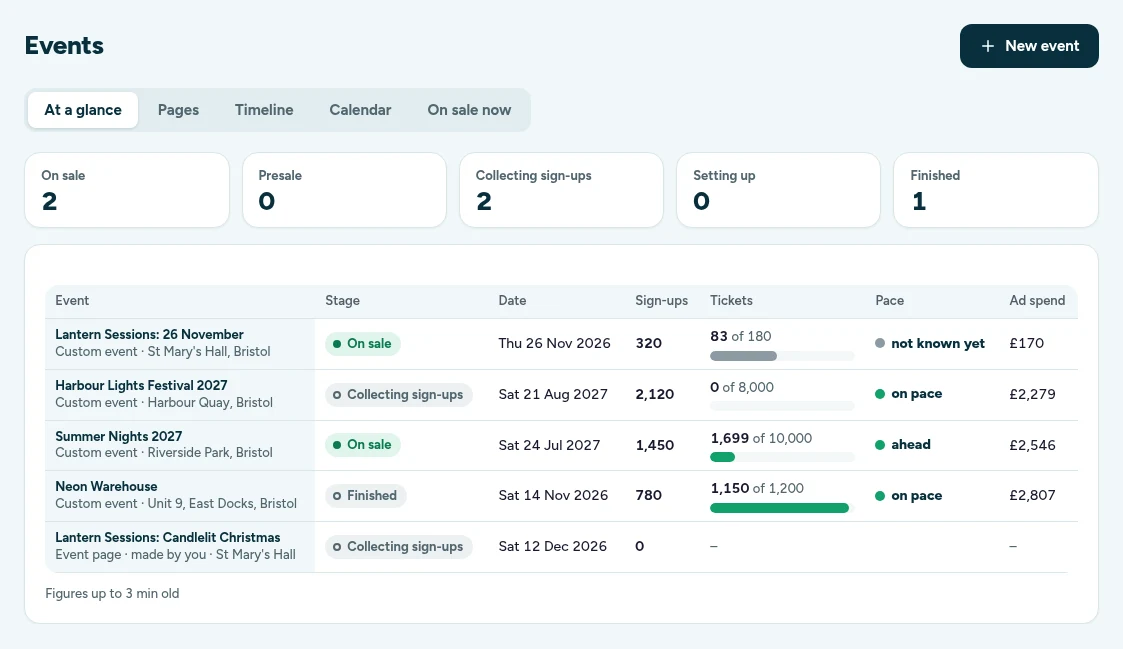
Pace is shown in four words:
- Ahead: selling faster than it needs to in order to sell out by the show.
- On pace: selling at about the rate needed.
- Slipping: a little behind the rate needed.
- Behind: well behind. Check the Results tab for what to do next.
When there are not enough sales yet to judge, pace shows as not known yet.
Pages
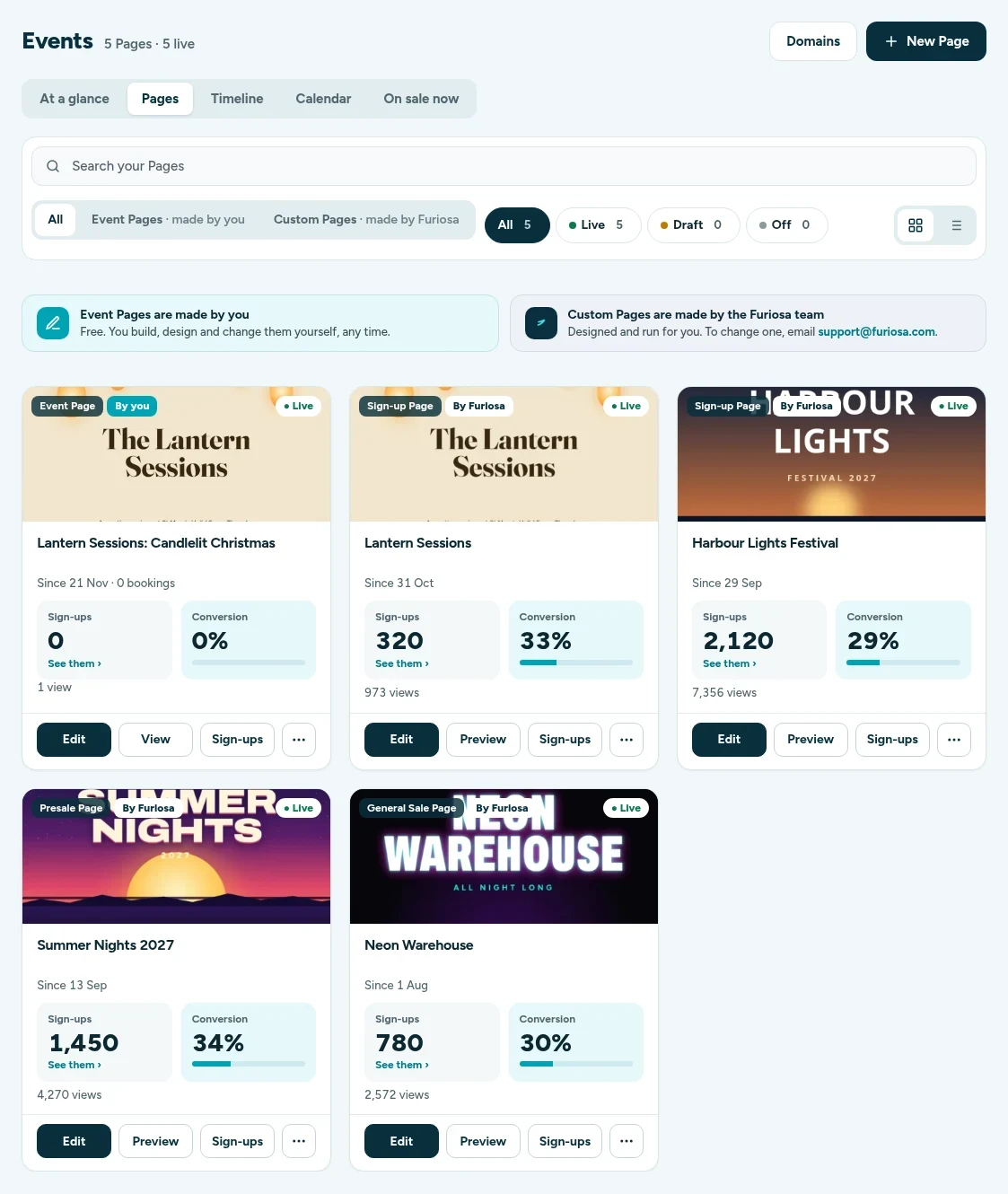
Pages is the list of your sign-up pages you already know, with its search, its Event Pages and Custom Pages filters and the Live, Draft and Off chips. Use the switch on the right to show them as cards or as a list. Domains and New Page are at the top.
Timeline
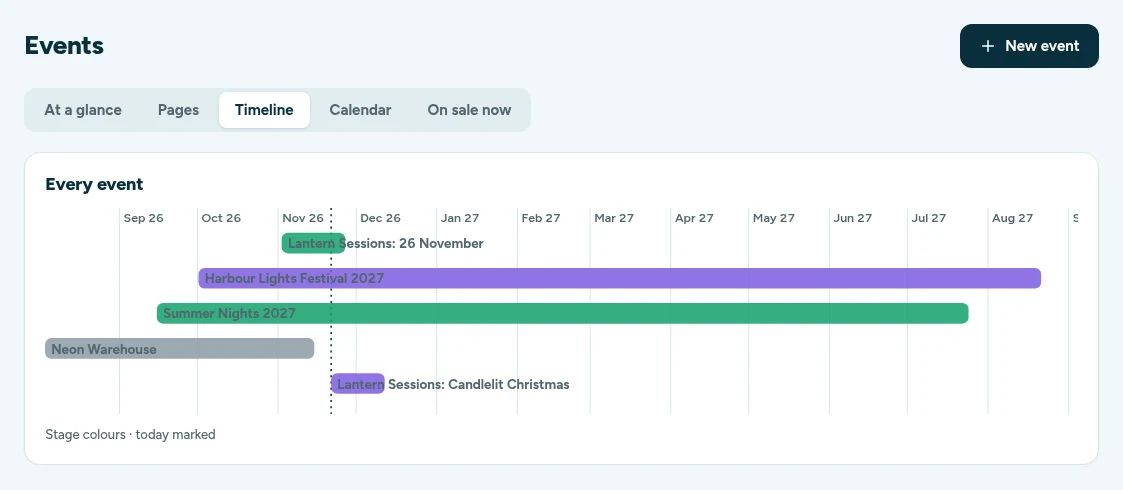
Timeline draws one bar per event, from the day sign-ups open to the show. Bars are coloured by stage and a dotted line marks today. If two shows fall within a week of each other, a Shows close together card lists them.
Calendar
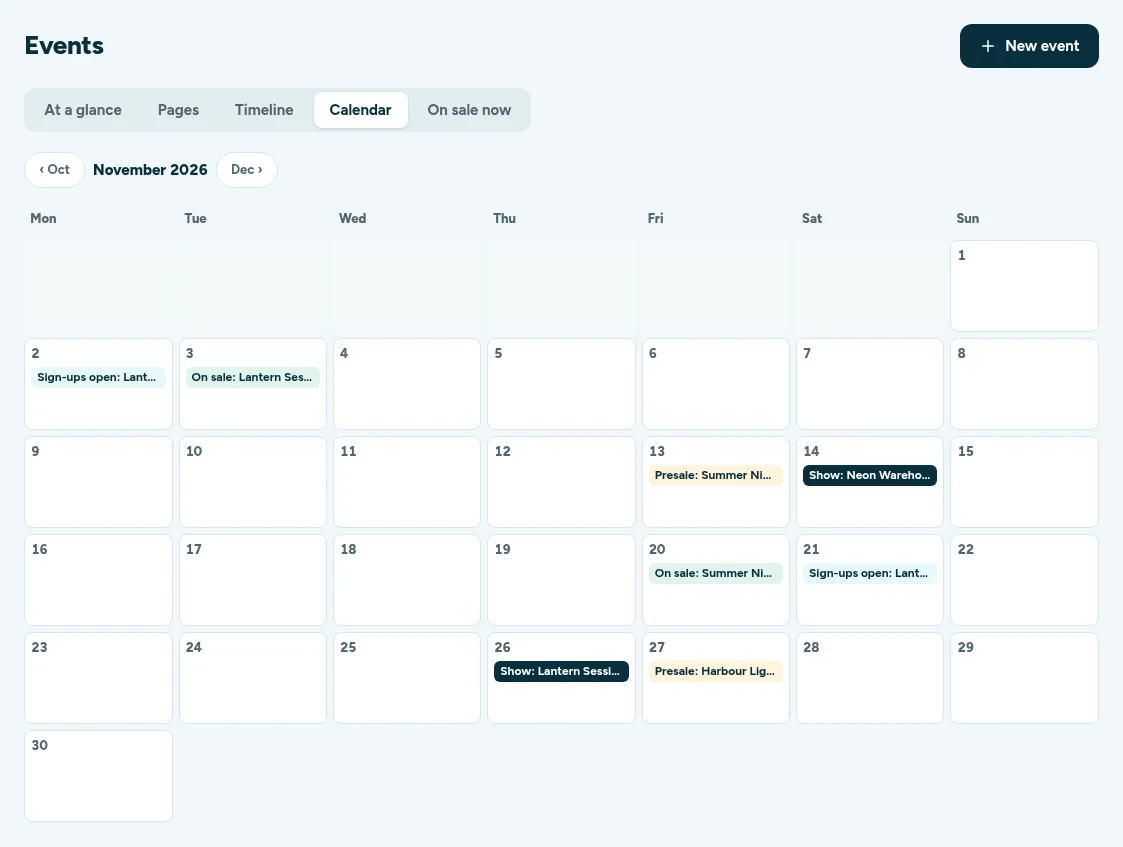
Calendar shows a month at a time with each event's key dates: sign-ups open, presale, on sale and the show. Use the arrows to move between months and click any date label to open that event.
On sale now
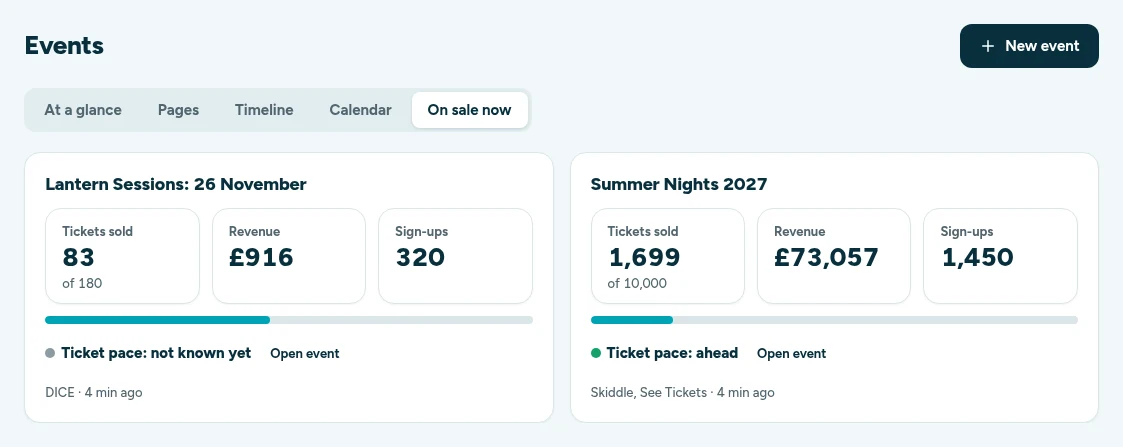
On sale now has a card for every event in presale or on sale, with tickets sold of capacity, revenue, sign-ups and pace. Open event takes you straight to it. Free event pages with ticket links show their ticket clicks here too.
Making a new event
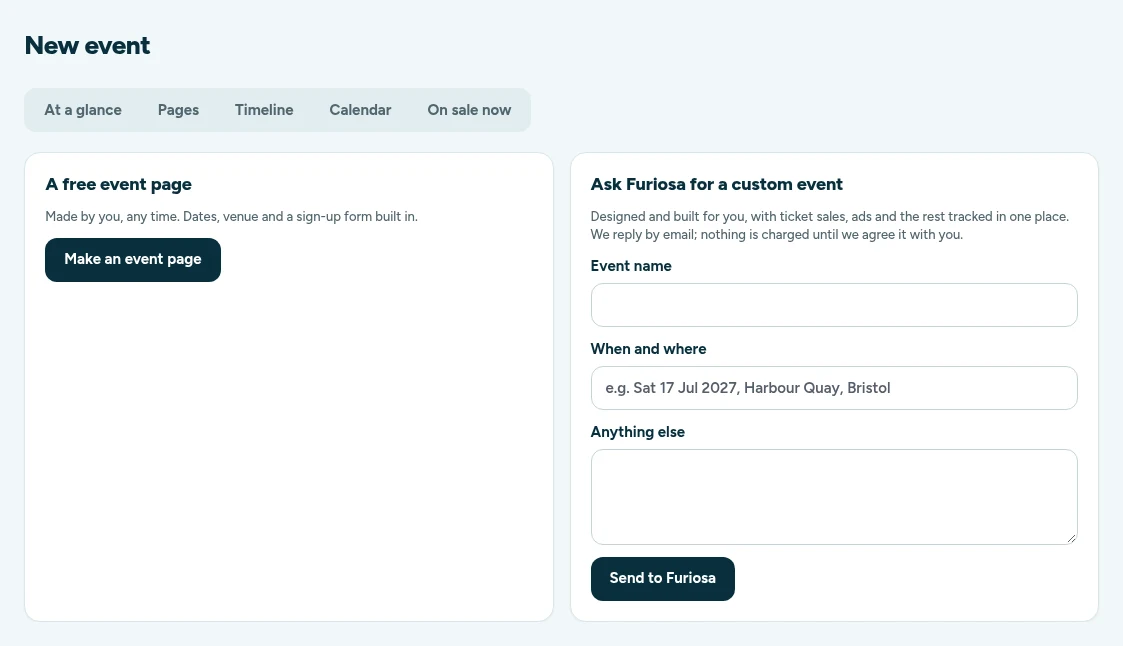
Click New event at the top right of any Events view. You have two choices:
- A free event page: click Make an event page to open the page wizard. You build it yourself, any time, with dates, venue and a sign-up form built in. See the Page Builder guide.
- Ask Furiosa for a custom event: type the event name, when and where, and anything else we should know, then click Send to Furiosa. We reply by email, and nothing is charged until we agree it with you.
The event strip and Event settings
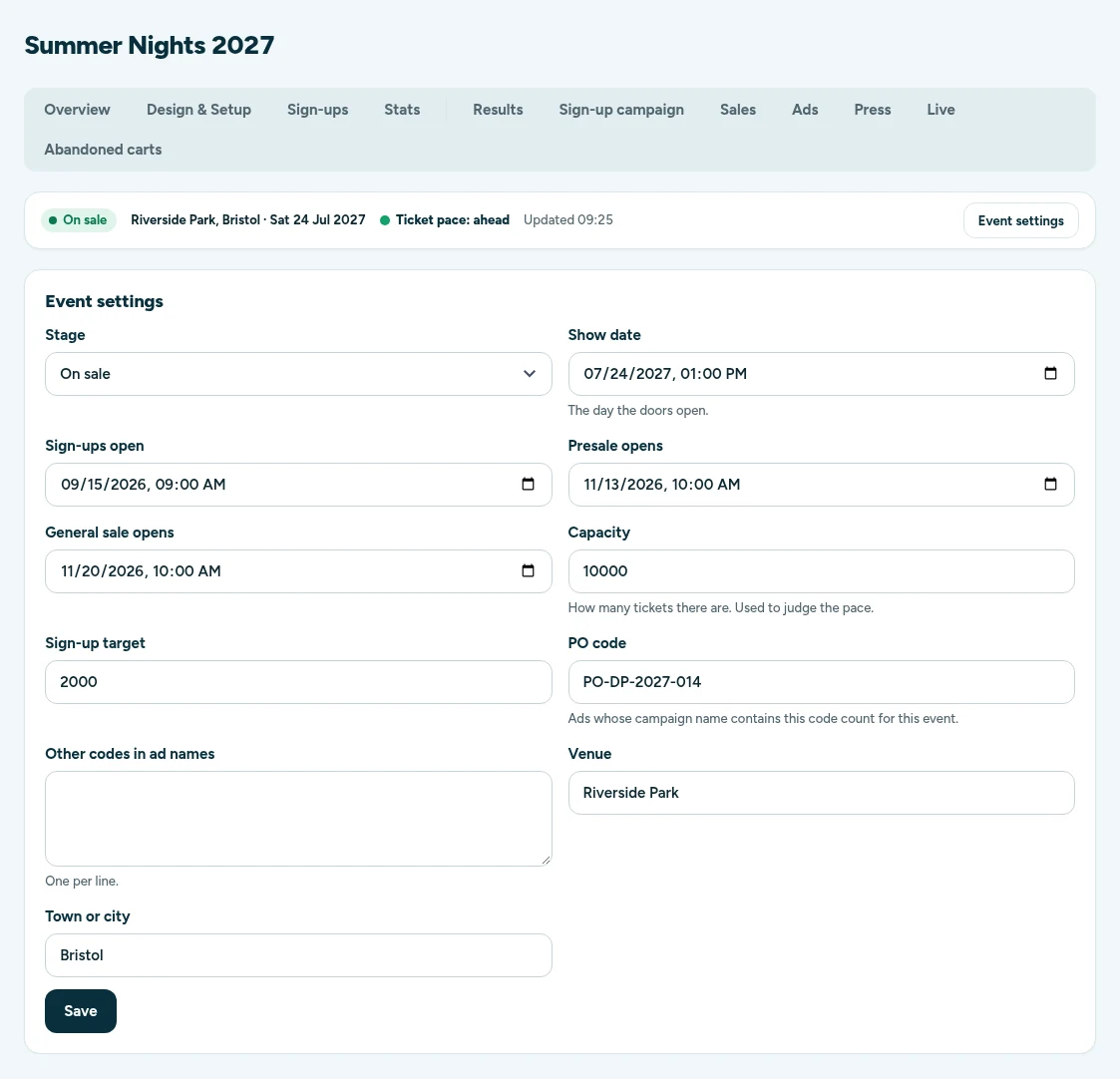
Open any event and a strip sits under the tabs. It shows the stage, the venue and show date, the ticket pace (click it to go to Results) and when the figures were last updated.
Click Event settings on the right of the strip to set:
- Stage: Setting up, Collecting sign-ups, Presale, On sale or Finished.
- Show date, Sign-ups open, Presale opens and General sale opens.
- Capacity: how many tickets there are. Pace is judged against it.
- Sign-up target: the number of sign-ups you are aiming for. The Sign-up campaign tab tracks it.
- PO code: ads whose campaign name contains this code count for this event. Add any extra codes under Other codes in ad names, one per line.
- Venue and Town or city.
Click Save when you are done.
PO-DP-2027-014 Summer Nights presale. That is how ad spend is matched to the right event.Tours
A tour is one page with a date picker, not a page per date. Fans pick their date on the sign-up form. In the CRM, a row of date chips sits at the top of each event tab: All dates first, then each date with its town. Pick a date to see only its figures, or All dates to see the whole tour added up.
With All dates picked, the Every date card lists each date with tickets sold of capacity and its pace, then a total row. Pace for the whole tour is the worst pace of the dates that can be judged, so a slow date is never hidden. Open See every date in a table for sign-ups, tickets, capacity, pace and ad spend per date.
On the At a glance view, a tour has one row with a row for each date under it.
Getting an event ready
A new event shows a Get ready checklist until each step is done. It counts the steps done and gives step-by-step help for each one:
- Connect your ticket agent (Skiddle, See Tickets, DICE, Easol or Ticketmaster) under Account → Connected apps.
- Connect Meta ads, signing in with the Facebook login that runs your ads.
- Connect Google Analytics by adding Furiosa's Google account as a Viewer on your property.
- Set the event dates in Event settings.
- Set the capacity in Event settings, so we can tell you whether you will sell out.
Click Show me how under any step for the steps, then Start. If you would rather not do it yourself, click Furiosa can do this for you.
Your events on the Dashboard
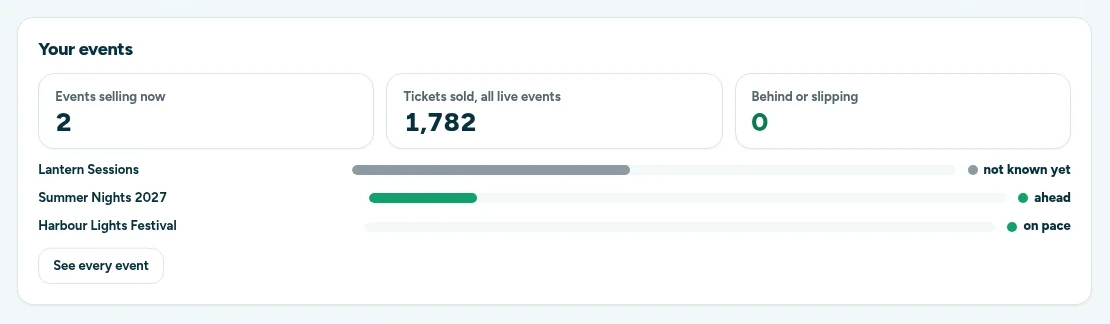
The Your events card at the top of the Dashboard shows how many events are selling now, tickets sold across all live events, and how many are behind or slipping. Each live event has a bar and its pace. Click See every event to open At a glance.
Events for your team
You can give a venue, artist manager or partner an Events only login. They see the Events screens and the figures, but never names, emails, phone numbers or downloads. If one login has access to more than one account, it picks the account after signing in and can change it with Switch account in the menu. See the Team Management guide for how to set this up.