Grow WhatsApp communities around your events, share one join link, post announcements to thousands of members at once and keep up with the group chats. This guide covers Campaigns > Groups.
Overview
WhatsApp communities are groups your fans join themselves, such as “Summer Nights 2027 fans”. You post announcements to them from the CRM (presale links, line-up news, set times), and you can read and answer the group chats in one place. Everything lives under Campaigns > Groups.
Groups is different from WhatsApp Business messages. A Business message goes to one person at a time and needs a template approved by Meta. A community announcement is one post that every member of the group sees, in your own words, with no template.
The Groups tab
Campaigns > Groups lists every community with its member count and the phone it sends from. Under each community you see its group chats, with the latest message and an unread count. Filter by All groups, Unread or Everything, or pick one phone. Direct messages holds one-to-one chats with your group phones.
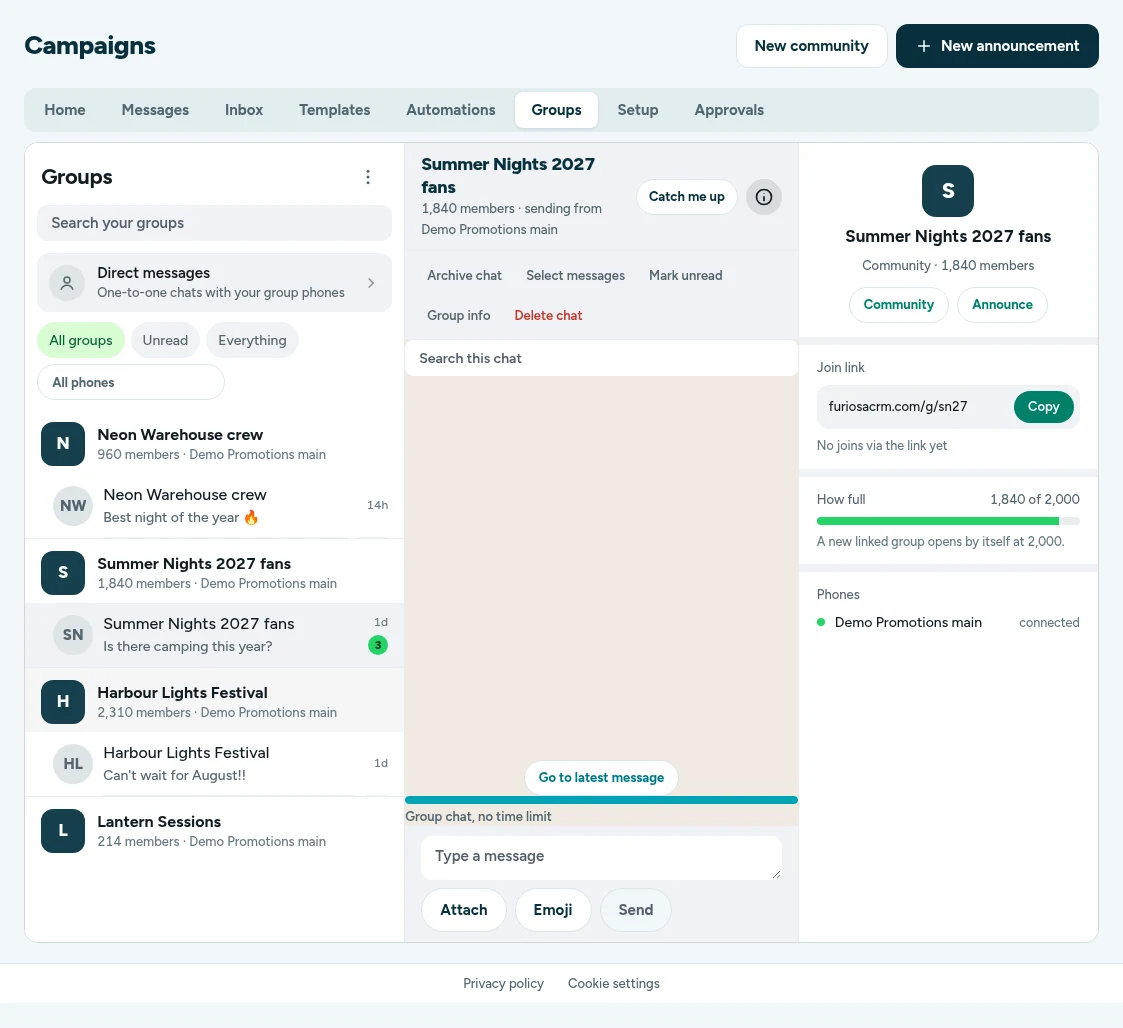
- Open a chat to read it and reply. Group chats have no reply time limit.
- Catch me up reads the last 50 messages and sums up what people have been saying.
- Archive chat, Select messages, Mark unread and Group info sit above each chat.
- Community opens the community’s own page, and Announce starts an announcement to it.
Start a community
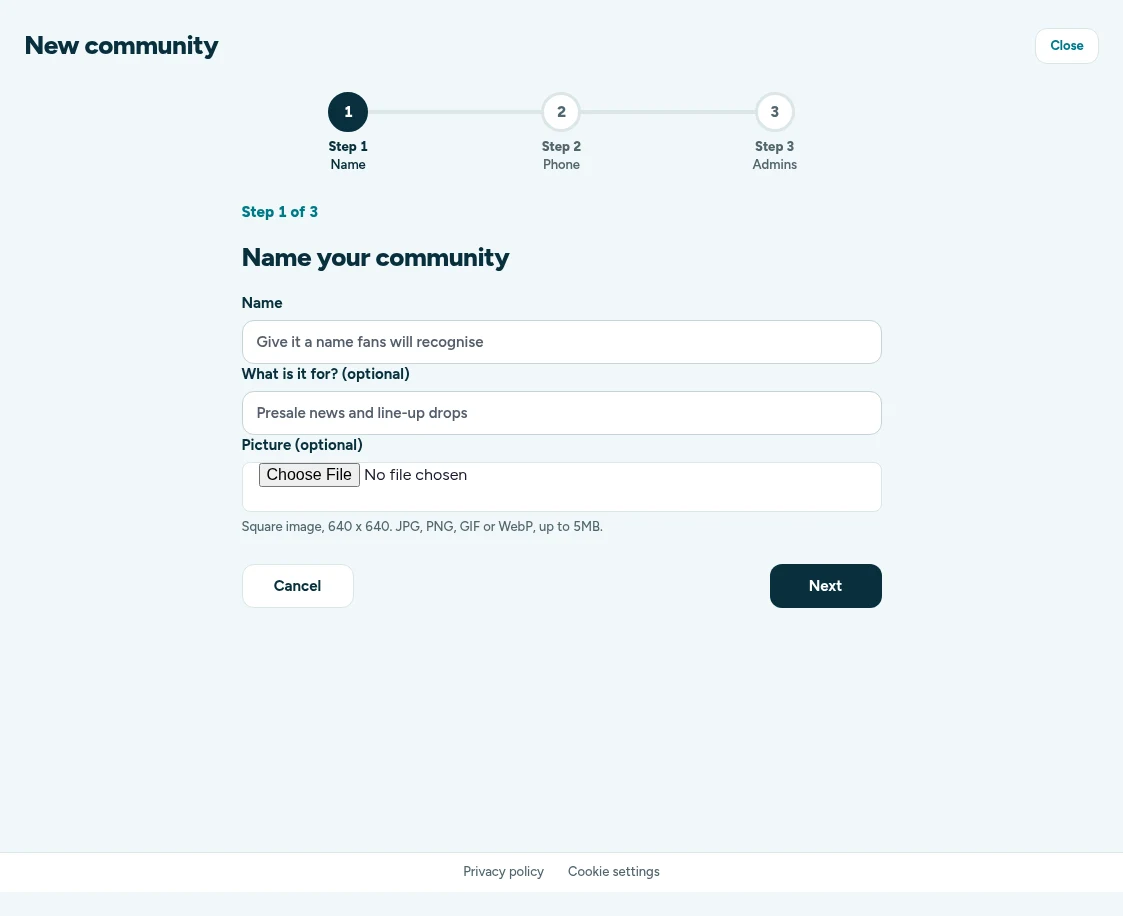
Click New community on the Groups tab. The wizard has three steps:
- Name: a name fans will recognise, an optional line about what it is for, and an optional square picture (640 × 640, up to 5MB).
- Phone: the connected phone the community sends from.
- Admins: phone numbers of people on your team who should be admins in WhatsApp.
Share the join link
Each community has a short join link, such as furiosacrm.com/g/sn27. Find it on the community’s page or in the panel beside its chat, and click Copy link. Good places to share it:
- the thank-you page or welcome email of your sign-up page, so new sign-ups can join straight away,
- an email or text to people who already signed up,
- your social posts and your own website.
A WhatsApp community holds up to 2,000 members. How full shows how close you are. When one fills up, the next linked group opens by itself and the join link moves on, so you never need to change the link you shared.
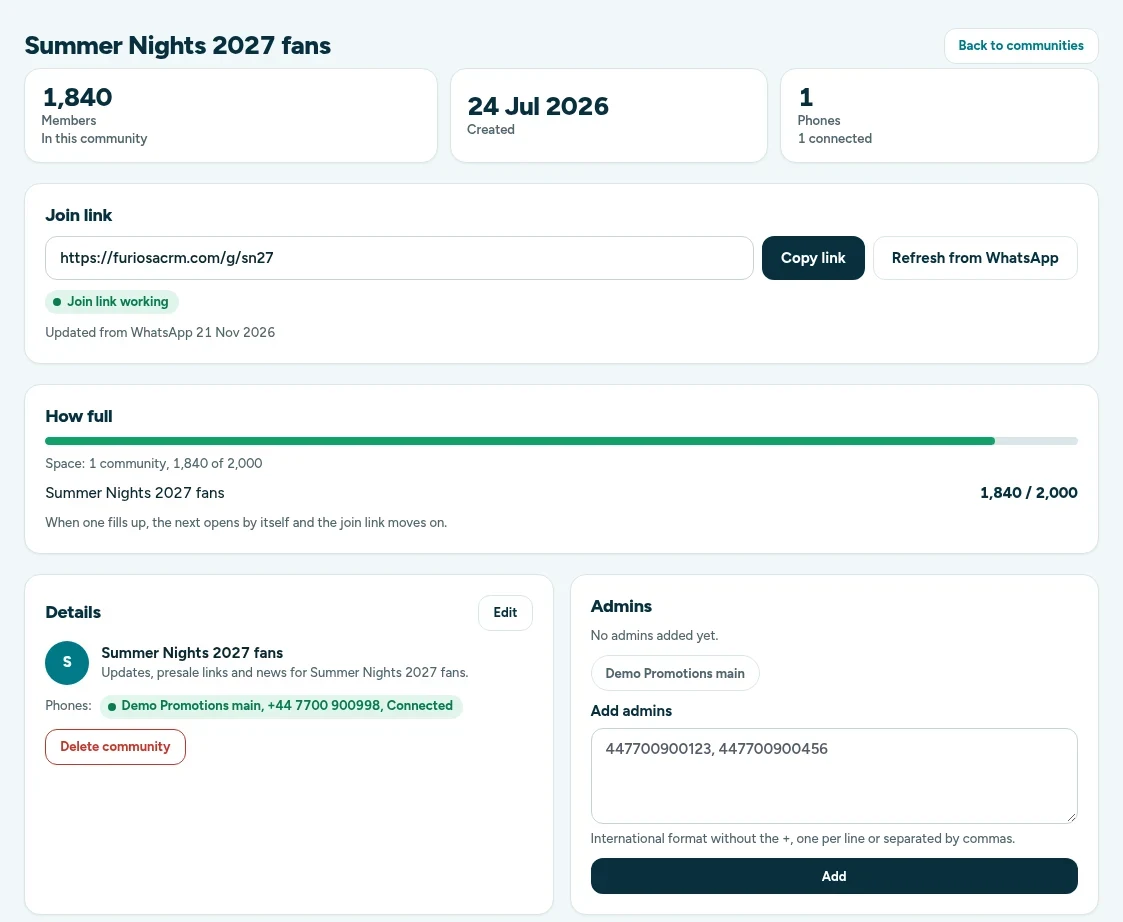
The community page also lets you edit the name and description, add admins (numbers in international format without the +), and search the people in the community.
Post an announcement
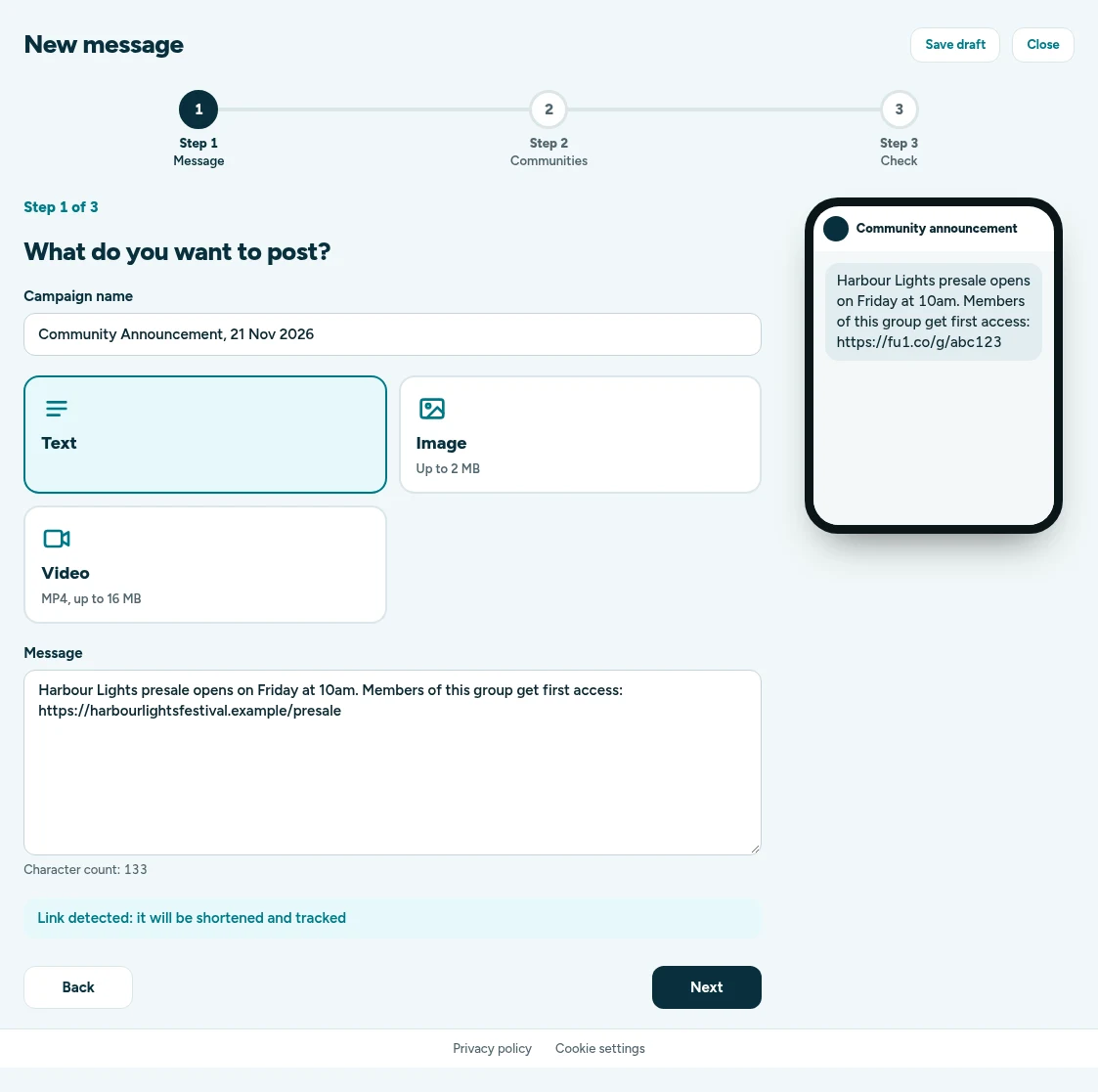
Click New announcement on the Groups tab, or New message and then Groups. The wizard has three steps: Message, Communities and Check.
- Message: choose Text, Image (up to 2MB) or Video (MP4, up to 16MB), then write your announcement or caption. A link in the message is shortened and tracked.
- Communities: tick the communities to post to, or Select all. Pick which phone sends it, or leave it on Auto to share the load across your linked phones.
- Check: send it now or pick a date and time. Send test posts it to a test group first. If your account has a test group, it is already picked for you.
If your team uses approvals, announcements can wait for a manager too. See Campaign approvals.
Groups reports
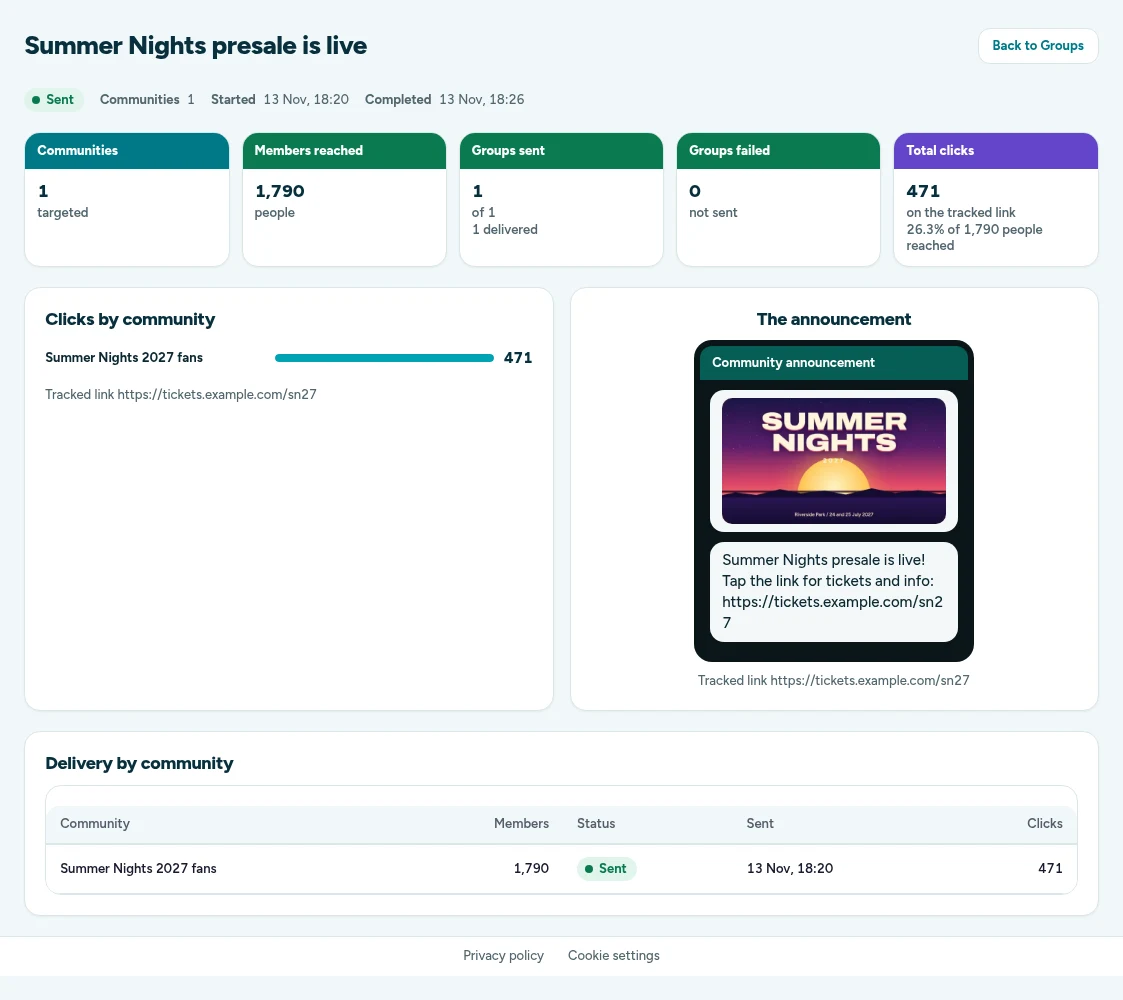
Sent announcements show in Campaigns > Messages with a Groups label. Click Report to see how many communities it went to, how many members it reached, whether each group post went out, and how many clicks the tracked link got.
Good habits
- Post less, but make it count. Members can leave or mute a group that posts too often.
- Lead with the news. The first line is what shows in the chat list.
- Always send a test to your test group before posting to thousands of fans.
- Add the join link everywhere you collect sign-ups, so the community grows with your list.
- Check the chats after a post. Questions about tickets often come in straight away.